



Android safety: How to Secure Your Device Effectively

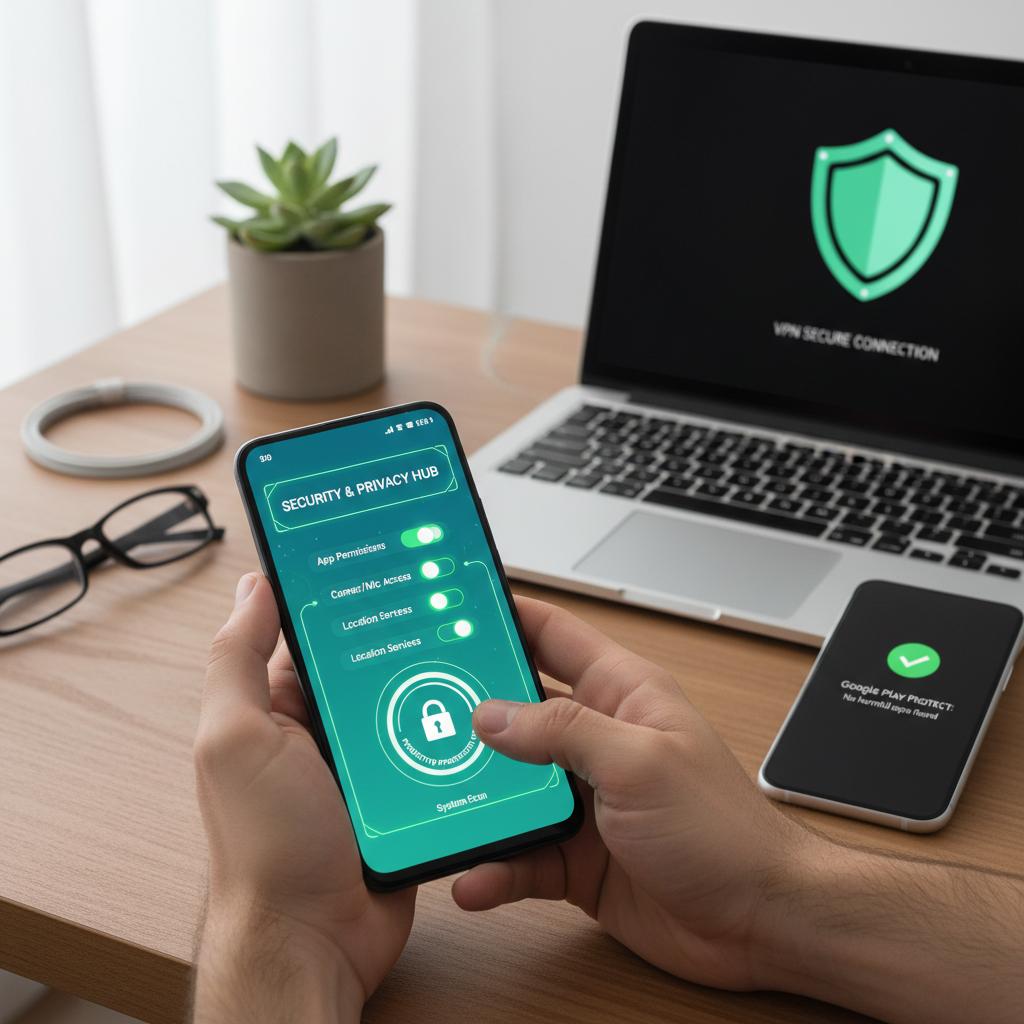
When it comes to Android safety, it’s not just about flipping switches or activating features. It’s about actively ensuring that your device’s security measures are functioning as they should. With cyber threats evolving every day, knowing how to navigate your Android settings and verify your security measures is essential for keeping your personal data secure and your device robust against attacks.
Many users think that simply enabling a few default settings is sufficient, but true security requires a proactive approach. From examining app permissions to checking encryption status and monitoring network connections, every action you take fortifies your defenses against unauthorized access and malware. Let’s explore practical methods to effectively secure your Android device.
What Is Android Safety
Android safety refers to the tools, settings, and practices aimed at safeguarding your device, data, and privacy from threats such as malware, unauthorized access, and data leaks. It’s a comprehensive approach that includes system-level protections, app controls, network security, and user awareness.
Google’s Android platform comes equipped with security features like Google Play Protect, device encryption, biometric authentication, and regular security updates. However, these features are only effective if they are correctly configured and actively monitored. Android safety involves not just enabling these tools but also verifying their status and understanding how they protect you in your daily activities. Additionally, it requires careful management of app permissions to prevent apps from accessing more data than necessary, which is a common source of privacy breaches.
Step 1: Accessing Android Security Settings
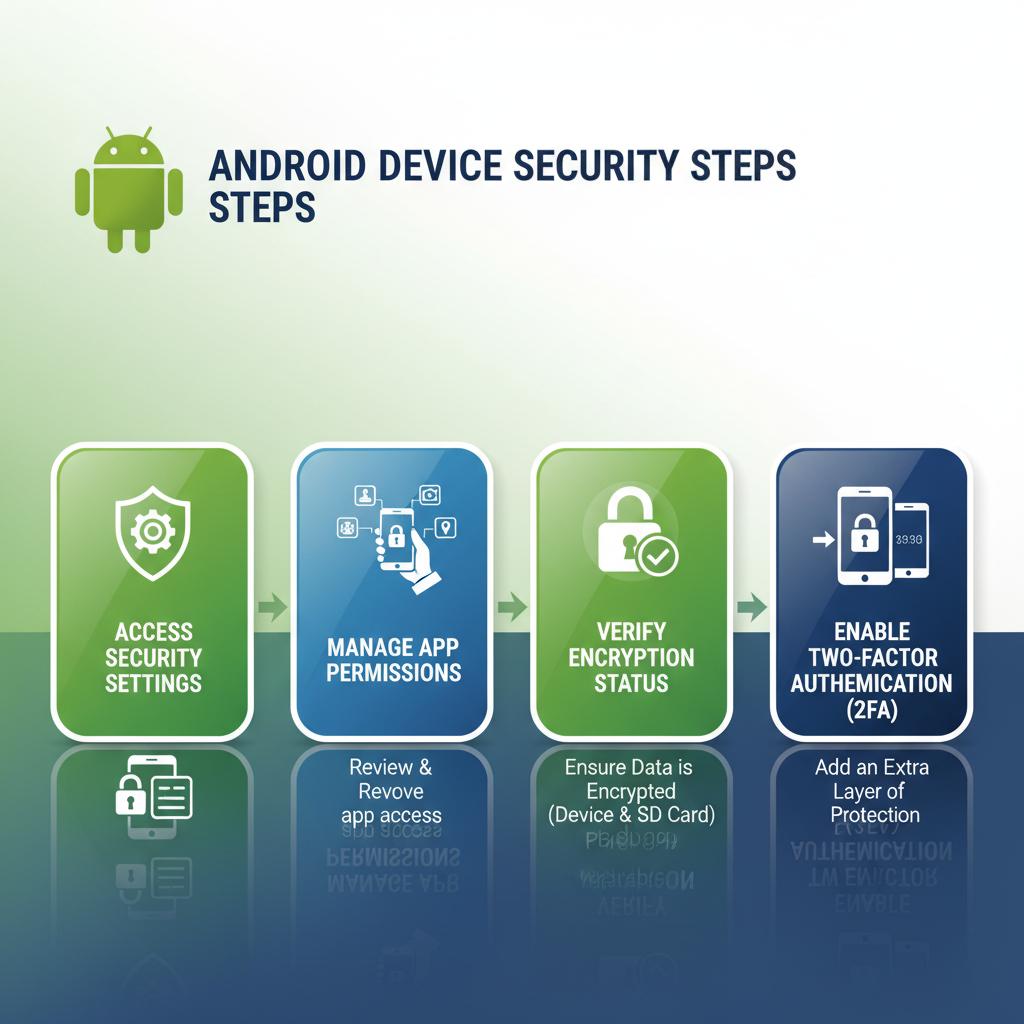
Before you can secure your device, it’s important to know where to find the security controls and what each option entails. The Security & Privacy menu on Android serves as your command center for managing protections.
Locate the Security & Privacy Menu
To access this menu, open your device’s Settings app and scroll to find “Security” or “Security & Privacy,” depending on your Android version and manufacturer skin. For instance, on Pixel devices, it’s located under Settings > Security, while Samsung phones may label it as Settings > Biometrics and Security.
This menu contains essential options like screen lock settings, encryption status, Google Play Protect, and device admin apps. Knowing where to find it is the first step toward effective Android safety.
Understand Key Security Options Available
- Screen Lock: This controls how you unlock your device (PIN, pattern, password, fingerprint, face unlock).
- Encryption: This ensures that data stored on your device is unreadable without your credentials.
- Google Play Protect: This scans apps for malware and suspicious behavior.
- Device Admin Apps: These are apps with elevated permissions that can control device settings.
- Find My Device: This feature helps locate, lock, or erase your phone remotely if it’s lost or stolen.
Understanding what each option does empowers you to make informed decisions about your device’s safety.
Verify Device Encryption Status
Encryption is a fundamental aspect of Android safety. It scrambles your data so that even if someone physically accesses your device, they cannot read your information without your password or PIN.
To check if your device is encrypted, navigate to Settings > Security > Encryption. Most modern Android devices come encrypted by default, but it’s wise to confirm. If encryption is disabled, follow the prompts to enable it. Keep in mind that enabling encryption may take some time and requires your device to be fully charged.
Step 2: Reviewing and Managing App Permissions
Apps frequently request access to sensitive data or device features. Unchecked permissions can expose your personal information or create security vulnerabilities.
Open the Permissions Manager
Go to Settings > Privacy > Permission Manager (or Settings > Apps > Permissions on some devices). This tool categorizes permissions like Camera, Location, Microphone, Contacts, and more, showing which apps have access.
Using the Permissions Manager allows you to quickly see which apps have potentially risky permissions and whether those permissions are necessary for the app’s functionality.
Identify Apps with Sensitive Permissions
Look for apps that have access to sensitive data such as your location, camera, microphone, or SMS. For instance, a flashlight app requesting access to your contacts or location is a red flag.
Critically review each app’s permissions. Some apps may request permissions “just in case,” but you can often disable these without affecting core functionality. This reduces your attack surface and limits data exposure.
Adjust Permissions to Minimize Risk
Tap on any permission category to view the list of apps with access. You can revoke permissions for apps that don’t need them or switch to “Ask every time” for more control.
For example, if a social media app has location access but you rarely use location features, consider disabling it. Android’s permission system is detailed, allowing you to customize access precisely.
Regularly reviewing and adjusting permissions is a proactive way to maintain Android personal safety and prevent unauthorized data collection.
Step 3: Confirming Active Data Protection Features
Having security features enabled is one thing; confirming they are actively protecting you is another.
Check Google Play Protect Status
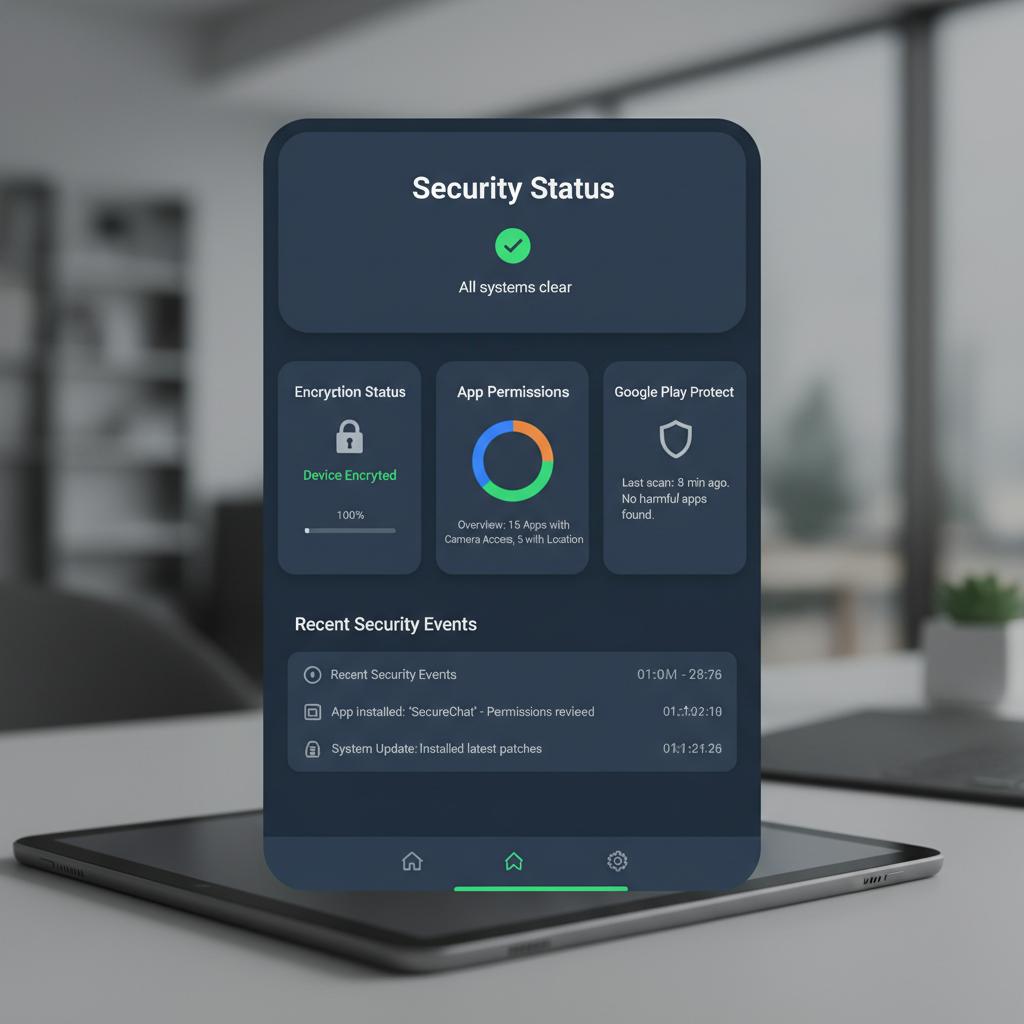
Google Play Protect continuously scans your device for harmful apps. To verify it’s active, open the Google Play Store app, tap your profile icon, then select Play Protect.
Here, you’ll see the last scan date and any detected threats. If Play Protect is off or hasn’t scanned recently, enable automatic scanning to ensure ongoing protection.
Enable Safe Browsing and Anti-Phishing Tools
Android’s Chrome browser and Google services include Safe Browsing features that alert you about dangerous websites and downloads.
To check this, open Chrome, go to Settings > Privacy and Security > Safe Browsing, and ensure it’s set to “Enhanced protection.” This setting provides real-time protection against phishing and malware sites.
Verify Automatic Security Updates Are Enabled
Security patches fix vulnerabilities that hackers exploit. Android devices receive monthly security updates, but these must be installed promptly.
Navigate to Settings > System > Advanced > System Update to check for updates. Enable automatic updates if available, so your device installs patches without delay.
Regular updates are crucial for maintaining data safety on Android and defending against emerging threats.
Step 4: Managing Network and Connectivity Security
Your device’s connection to Wi-Fi, Bluetooth, and mobile networks can be exploited if not managed carefully.
Review Wi-Fi and Bluetooth Settings
Open Settings > Network & Internet > Wi-Fi and Bluetooth menus. Remove saved networks you no longer use, especially public or unsecured ones.
Disable Bluetooth when not in use to prevent unauthorized pairing or data interception. Avoid connecting to unknown or suspicious Wi-Fi networks, as these can be hotspots for man-in-the-middle attacks.
Use VPNs for Secure Connections
A Virtual Private Network (VPN) encrypts your internet traffic, safeguarding your data from eavesdropping on public networks.
Consider using a reputable VPN app, especially when accessing sensitive information over public Wi-Fi. Google’s own VPN service, Google One VPN, is available for subscribers in select regions and integrates seamlessly with Android.
Disable Unnecessary Network Access
Some apps or services may use data in the background without your knowledge. Go to Settings > Apps > [App Name] > Data Usage to restrict background data for apps that don’t need constant connectivity.
This reduces exposure to network-based attacks and helps conserve battery life.
Step 5: Using Built-In Android Safety Tools
Android offers several built-in tools designed to protect your device and data proactively.
Set Up Find My Device for Theft Protection
Find My Device allows you to locate, lock, or erase your phone remotely if it’s lost or stolen.
Enable it by going to Settings > Security > Find My Device and turning it on. Test the feature by visiting google.com/android/find from another device to ensure your phone appears on the map.
This tool is invaluable for recovering your device or protecting your data if it falls into the wrong hands.
Configure Screen Lock and Biometric Authentication
A strong screen lock is your first line of defense. Use a PIN, password, or pattern that’s hard to guess.
Enhance security with biometric options like fingerprint or face recognition, available on most modern Android phones. These methods combine convenience with robust protection.
Set up these options under Settings > Security > Screen Lock or Biometrics.
Enable Two-Factor Authentication for Google Account
Your Google account is the gateway to many Android services. Protect it with two-factor authentication (2FA), which requires a second verification step beyond your password.
Visit myaccount.google.com/security and enable 2-Step Verification. Use authenticator apps or security keys for stronger protection.
2FA significantly reduces the risk of unauthorized access to your account and linked services.
Step 6: Monitoring Device Activity and Alerts
Security is an ongoing process. Monitoring your device helps catch issues early.
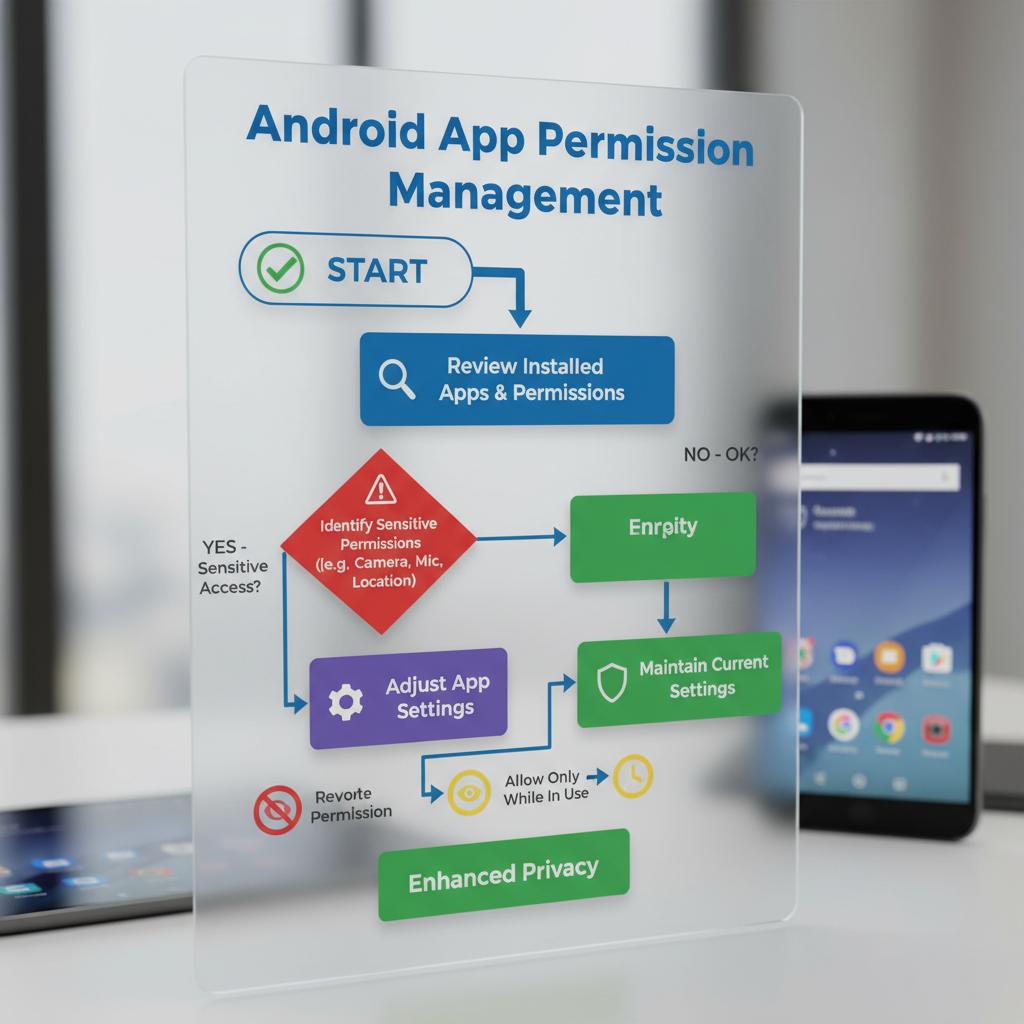
Review Security Notifications and Alerts
Android and Google Play Protect send notifications about suspicious activity or app behavior.
Pay attention to these alerts and act promptly. For example, if Play Protect warns about a potentially harmful app, uninstall it immediately.
Use Security Apps for Real-Time Monitoring
Consider installing trusted security apps like Malwarebytes or Bitdefender for Android. These apps provide real-time malware scanning, phishing protection, and privacy audits.
While Google Play Protect covers many threats, third-party apps can offer additional layers of defense and detailed reports.
Recognize Signs of Malware or Unauthorized Access
Be alert to unusual behavior such as rapid battery drain, unexpected data usage, frequent crashes, or unfamiliar apps.
If you notice these signs, run a full device scan and review app permissions. In severe cases, a factory reset may be necessary to remove persistent malware.
Case Study: Securing an Android Device After a Security Breach
Initial Assessment and Identifying Vulnerabilities
In 2022, a major U.S. financial services company, Capital One, faced a data breach partly due to compromised mobile app permissions and outdated security patches on employee Android devices.
The company’s security team conducted a thorough audit, identifying apps with excessive permissions and devices lacking encryption and timely updates.
Step-by-Step Remediation Actions Taken
Capital One enforced strict app permission reviews, removing unnecessary access and educating employees on safe app usage. They mandated device encryption and ensured all Android devices received automatic security updates.
Additionally, they deployed Google’s Advanced Protection Program for high-risk users, adding hardware security keys and enhanced account monitoring.
Outcome and Lessons Learned
Post-remediation, Capital One reported a significant reduction in mobile-related security incidents. The case underscores the importance of active permission management, encryption verification, and update enforcement in Android safety.
Frequently Asked Questions
How can I tell if my Android device is fully secure?
A fully secure Android device has encryption enabled, Google Play Protect active and up to date, strong screen locks, minimal app permissions, and automatic security updates enabled. Regularly reviewing these settings and monitoring alerts helps confirm ongoing security.
What permissions should I be most cautious about?
Permissions granting access to your location, camera, microphone, contacts, SMS, and storage are sensitive. Apps requesting these should have a clear, necessary purpose. Be wary of apps asking for permissions unrelated to their function.
How often should I review my security settings?
Review your Android safety settings at least once every month or after installing new apps. Frequent checks help catch permission creep and ensure updates and protections remain active.
Can Google Play Protect detect all types of malware?
Google Play Protect detects a wide range of malware and suspicious behavior but is not infallible. Combining it with cautious app installation practices and additional security apps enhances protection.
What should I do if I suspect my device is compromised?
Run a full scan with Google Play Protect and a trusted security app. Review and revoke suspicious app permissions. If problems persist, back up your data and perform a factory reset to remove malware.
Conclusion
Google’s Android platform offers powerful tools to safeguard your device, but true Android safety requires active engagement. By accessing and understanding your security settings, managing app permissions carefully, and verifying that data protection features like encryption and Google Play Protect are functioning, you take control of your device’s security.
Network vigilance, biometric authentication, and two-factor verification further strengthen your defenses. Regular monitoring and prompt responses to alerts keep threats at bay. With these practical steps, you ensure your Android phone safety is not just theoretical but effective in real-world use—protecting your personal data and privacy every day.